HUD reference
NoxuTFT isn't one window — it's a set of small overlays that each appear when the round needs them. This page says what each one is telling you, so you can tell a quiet HUD from a broken one.
Pool tracker

The number above each shop champion is how many copies of that unit are still in the pool shared by the whole lobby. A 4-cost showing 22 of 28 means six are already on boards and benches; one showing 4 means your three-star is most likely gone.
The strip above the shop is your roll odds at the current level — the chance of each cost tier appearing per shop slot. Read it together with the counters: good odds on a tier whose units are exhausted is not a reason to roll.
Units you're targeting are highlighted, so you can find them in a crowded shop without reading names.
Level-up marker
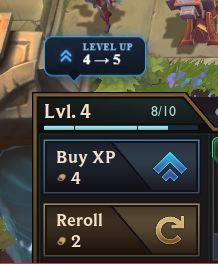
A marker over the XP button when levelling is the better use of your gold than rolling, given your level, your gold and where you are in the stage. It appears when the call is worth making and stays out of the way otherwise.
Augment overlay
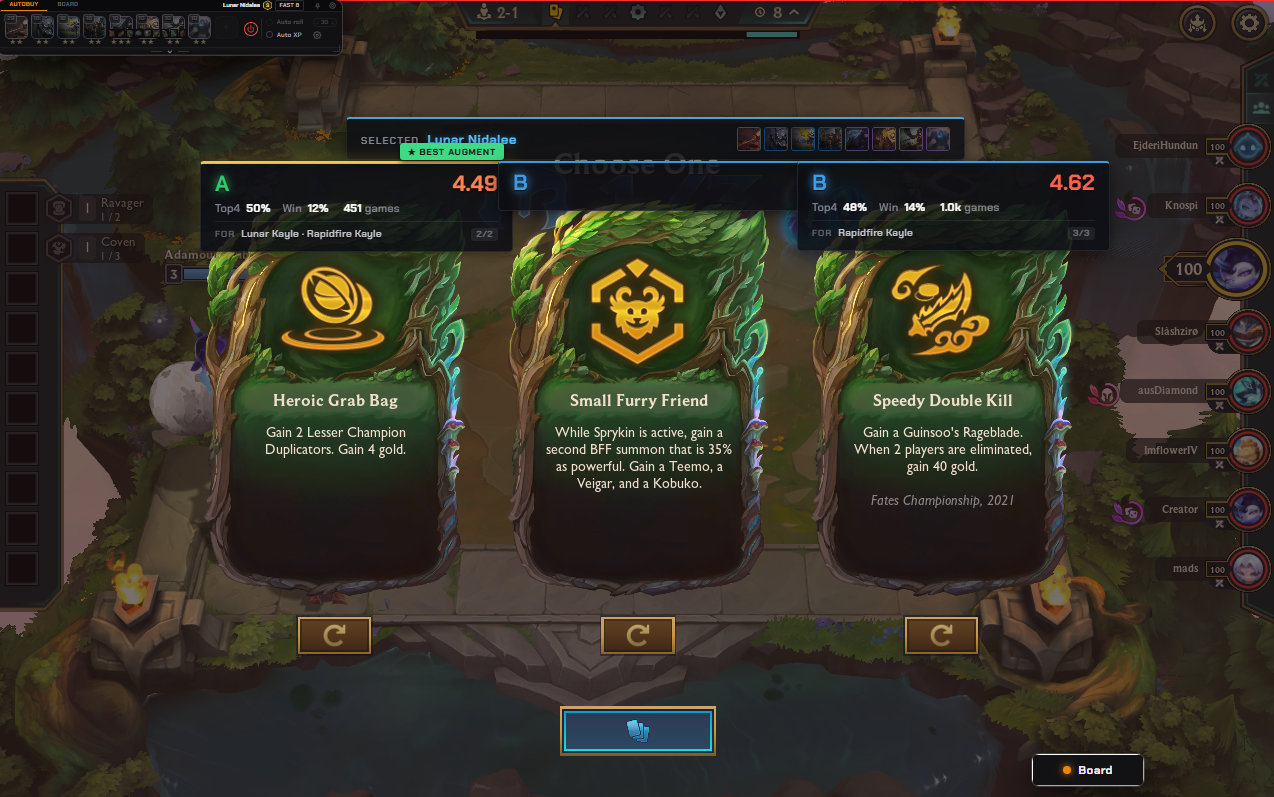
Each of the three cards is annotated with:
- A letter grade — A down to D, at a glance.
- Average placement — the number in the top right. Lower is better; 4.00 is break-even.
- Top 4 and Win rate, with the number of games behind them. A grade from 451 games is worth more than one from 40.
- The FOR line — which compositions the augment suits, and how well it fits the one you selected. This is what separates it from a global tier list: an augment that's mediocre overall can be the right pick for your board.
The strongest of the three carries a BEST AUGMENT badge. Your selected comp and its units are shown along the top so you can see what the grades are being measured against.
Board AI panel
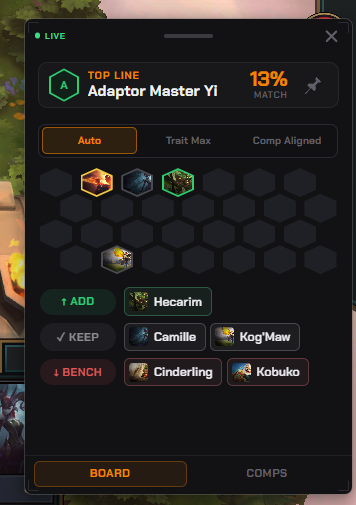
The top line names the composition your board is closest to and the match percentage. Below it, three modes:
- Auto — the strongest board it can build from what you hold right now.
- Trait Max — the arrangement that hits the most trait breakpoints.
- Comp Aligned — stays on the comp you chose, even when a detour would be stronger this round. Use it when you're playing for the late game, not this fight.
Then the verdicts, by name rather than by hint: ADD the units that improve the board, KEEP what's already earning its slot, BENCH what isn't. The COMPS tab lists the compositions you could still pivot into from here — useful the moment your intended carry stops showing up.
Positioning overlay
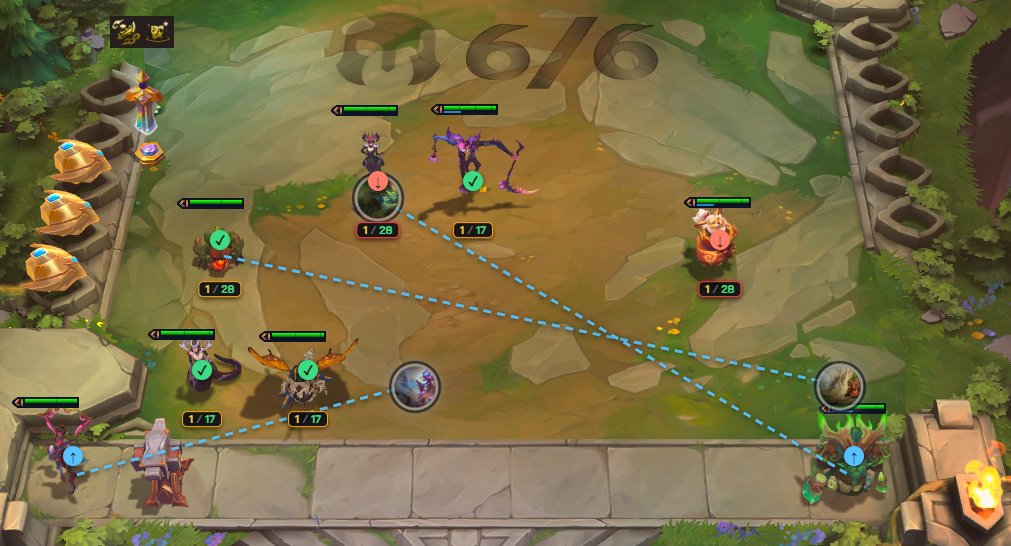
Drawn straight onto the board between rounds:
- A green check on units already where they should be.
- A marker on units that shouldn't be there.
- Dashed arrows from a unit's current hex to the one it belongs on.
- A counter under each unit — for example
1 / 28— meaning how many copies you hold and how many remain in the pool. Positioning and rolling decisions on the same screen.
Auto-buy bar

The strip along the top holds your target champions. Each carries a star level: set a unit to two stars and buying stops the moment you reach it — the entry greys out so gold stops leaking into a unit you've already finished. Search by champion name or by trait to fill the bar.
Auto roll rerolls down to a gold floor you set. Auto XP buys levels for you. Both are covered in automation, including why they ship switched off.
The BOARD tab beside AUTOBUY swaps the strip for the board view, and the toggle at the right end turns the whole thing off without leaving the game.